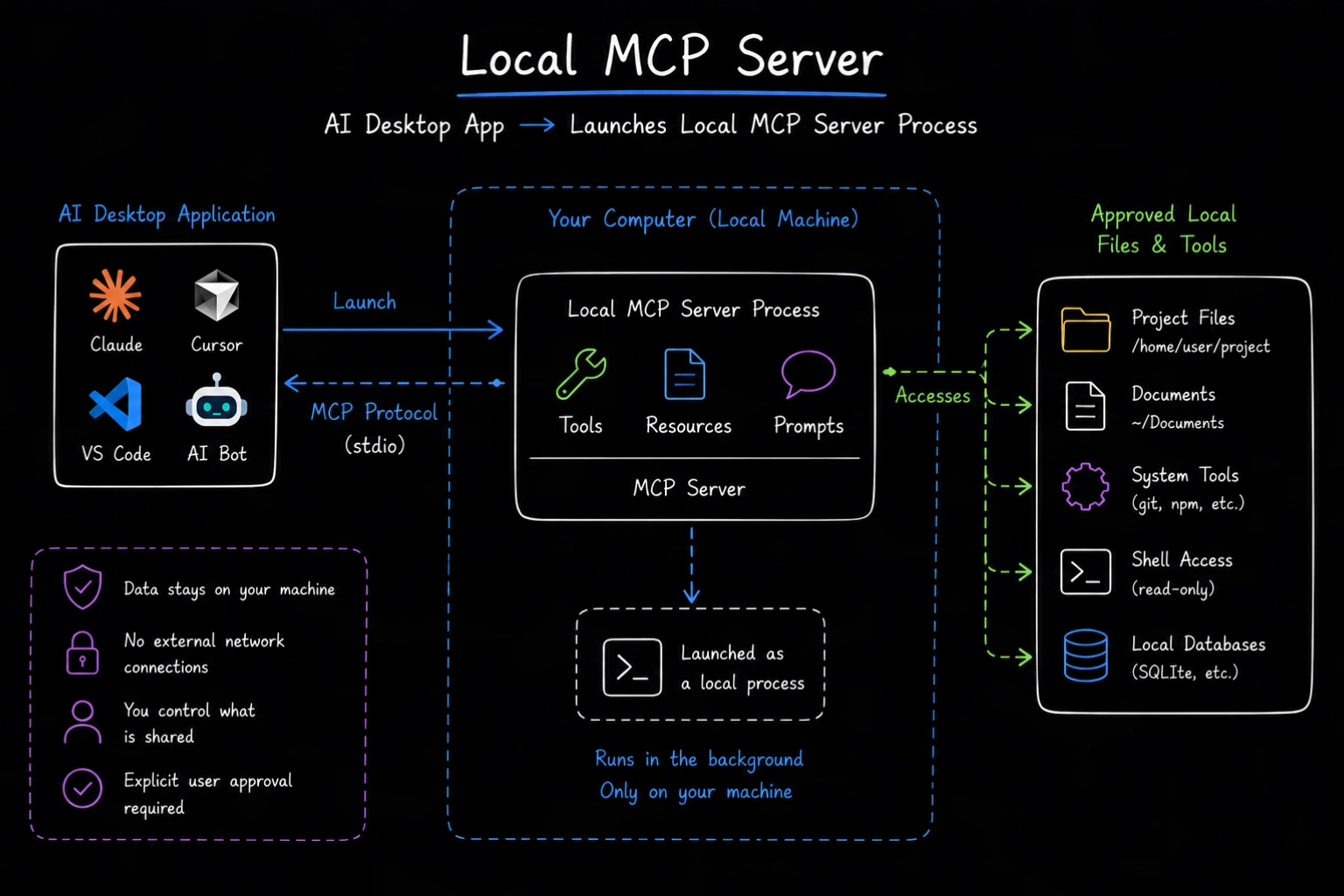
A local MCP server is a program that runs on the same device as the MCP host or within the user’s local environment.
Local servers commonly give AI applications controlled access to files, command-line tools, source code, desktop software, and development services.
How local MCP servers connect
A host often launches a local server as a child process and communicates with it through stdio.
With stdio:
- The client writes MCP messages to the server’s standard input.
- The server writes MCP messages to standard output.
- The host manages the process lifecycle.
- Diagnostic logs should go to standard error, not standard output.
Standard output must contain only valid protocol messages. An ordinary debug print can break the connection.
Common local MCP use cases
Local servers are useful when capabilities depend on the user’s device.
Examples include:
- Reading and writing approved files
- Searching a local source repository
- Running development commands
- Querying a local database
- Interacting with installed desktop software
- Using device-specific hardware
- Reaching services available only on a private network
These workloads are difficult or inappropriate to expose through a public remote server.
Benefits of a local MCP server
Direct access to local resources
The server can work with resources that are not available over the internet.
Fast development loop
Developers can change, restart, inspect, and debug a local process without deploying it.
User-specific configuration
Each user can configure paths, credentials, and tools for their own environment.
Reduced hosting needs
There is no shared server infrastructure to operate.
Local does not automatically mean private or safe. The host, model provider, or connected services may still process data. Review the complete data flow for your client and server.
Local server setup
A local setup generally requires:
- A compatible MCP host
- A server executable or package
- A command that starts the server
- Any required command-line arguments
- Environment variables or local credentials
- Explicit access to approved files or services
The exact configuration format depends on the host. Some desktop applications support installable extensions. Others use a JSON configuration that defines the command, arguments, and environment.
Example configuration shape
The following conceptual configuration shows how a host might start a server:
Do not commit real secrets to a configuration file. Use the secure credential mechanism supported by the host.
Local MCP security
A local MCP server usually runs with the permissions of the user who launched it. That can include access to sensitive files, shell commands, credentials, and network services.
Reduce risk by:
- Restricting file access to specific directories
- Exposing only necessary tools
- Validating every input
- Requiring approval for destructive actions
- Avoiding unrestricted shell execution
- Keeping dependencies updated
- Installing servers only from trusted sources
- Reviewing source code and package integrity
- Using separate credentials with limited scopes
Treat a local MCP server like any other program you install. It can perform actions with the permissions available to its process.
Debugging local connections
If a local server does not connect:
- Run its startup command directly
- Check that the executable and file paths exist
- Verify required environment variables
- Send logs to
stderr
- Confirm that
stdout contains only MCP messages
- Check protocol and SDK compatibility
The MCP Inspector can start a local server and display its capabilities and messages.
When a local server is the wrong choice
Local servers become difficult to manage when many users need the same integration.
Each user may need installation, configuration, credentials, upgrades, and troubleshooting. A remote MCP server may be better for a shared SaaS API or centrally managed production capability.
Key takeaway
A local MCP server runs near the user and is best for device-specific resources, private development environments, and individually managed workflows.